Monday, 9:12. Three emails from the same client are already waiting. One asks for "the latest version" of the interim report, one asks how many of this month's retainer hours are left, and one forwards a question from a finance director who joined the project last week. None of it is new information. All of it sits somewhere in your tools, and each answer means opening three of them.
A client portal is built for exactly this moment: a private place where each client signs in and finds the current state of their own work without writing to you first. This guide explains what a client portal is, what consultants put in it and keep out of it, and how to introduce one without making clients learn a new job. If you arrived looking for a particular company's client portal login, use the link in the invitation email that company sent you, or ask your contact there; this page is for the firms that run one.
What is a client portal?
A client portal is a secure website where a business's clients sign in with their own accounts to see, and sometimes act on, the information that concerns them. Three properties make it a portal rather than just another tool:
- Named access. Each person signs in as themselves, so access is granted and removed person by person.
- Their own records only. A client sees their contracts, documents and invoices, never another client's.
- Live, not assembled. The client sees the same data your team works on, updated as the work happens, not a summary prepared for a meeting.
That rules out a few look-alikes. A shared drive folder shows files, not where the work stands. A project management tool with a guest login shows the client your internal to-do lists, comments and all. A status report is a snapshot that starts aging the day after you send it.
Client portals come in four broad kinds: document portals built around secure file exchange, all-in-one business suites that add a portal to a CRM and invoicing, workflow portals that guide clients through approvals and forms, and engagement portals built around the contract and the project. I compared eight of them in best client portal software: 8 tools compared, and the ones that cost nothing in free client portal options for small firms.
What consultants put in a client portal
The quickest way to decide what goes in is to list the questions clients ask you by email, and give each one a permanent answer:
| The client asks | What answers it in the portal |
|---|---|
| "Where are we?" | Tasks with their status and deadlines, and the next milestones |
| "How many hours are left this month?" | Hours used against the hours contracted |
| "Can you resend the latest version?" | The contract's documents, in folders, with dates |
| "What do we owe, and for which period?" | Billing amounts and history, line by line |
| "When does this contract end?" | The contract and its end date |
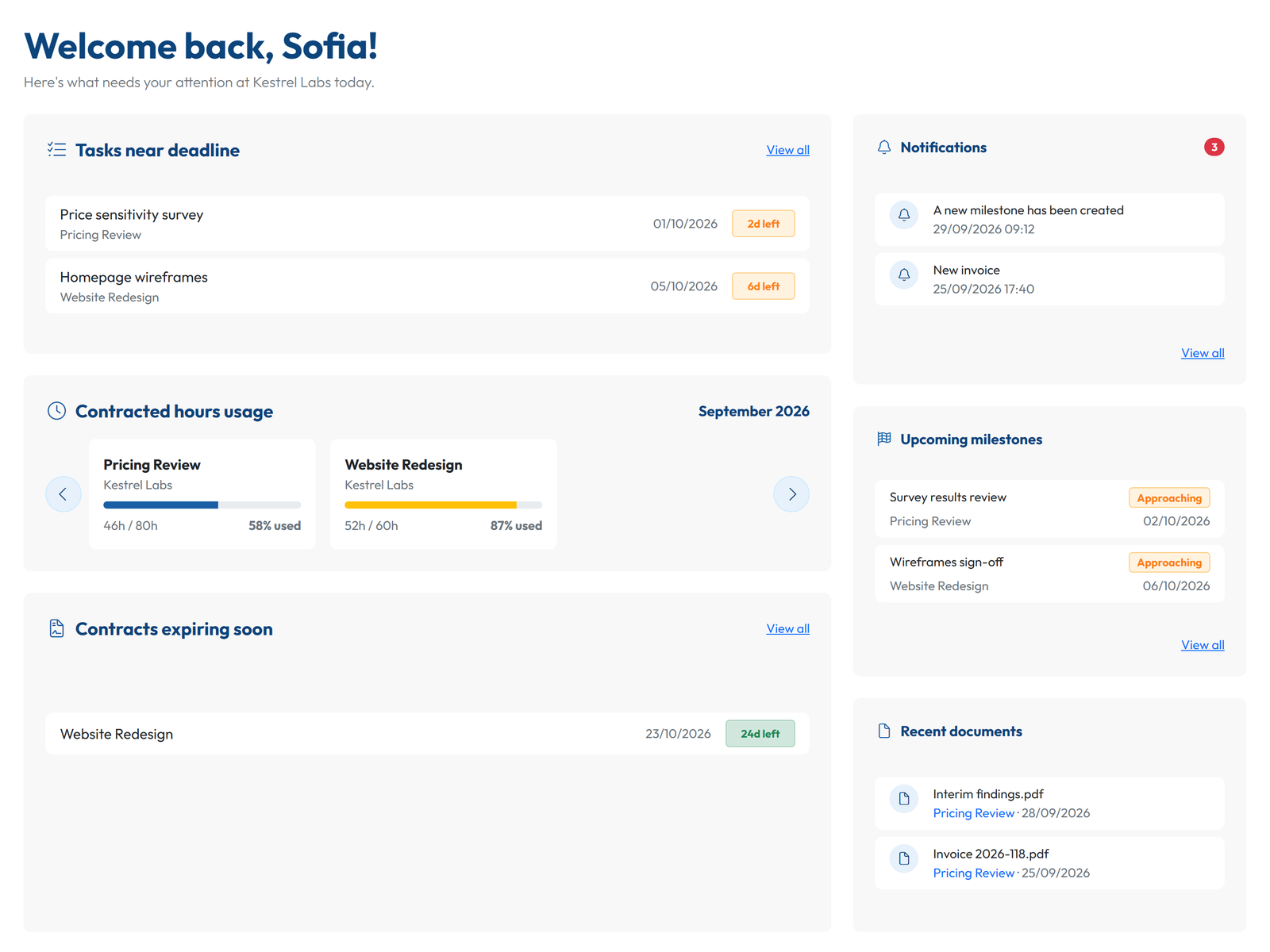
In GoCons, all of this hangs off the contract, which can be one of nine types, from a retainer with a fixed monthly amount and included hours to a success fee. In the GoCons client portal each client sees their contracts with you, the milestones and tasks, hours used against what was contracted, billing amounts and history, and the documents of their contracts. Clients are invited by email, and they get notifications in the app and by email for events such as a new contract, a new milestone or an issued invoice.
Still answering the same client questions by email? Give every client a secure portal to check their contracts, documents, tasks, milestones and hours, always up to date.
How consultants use a client portal across an engagement
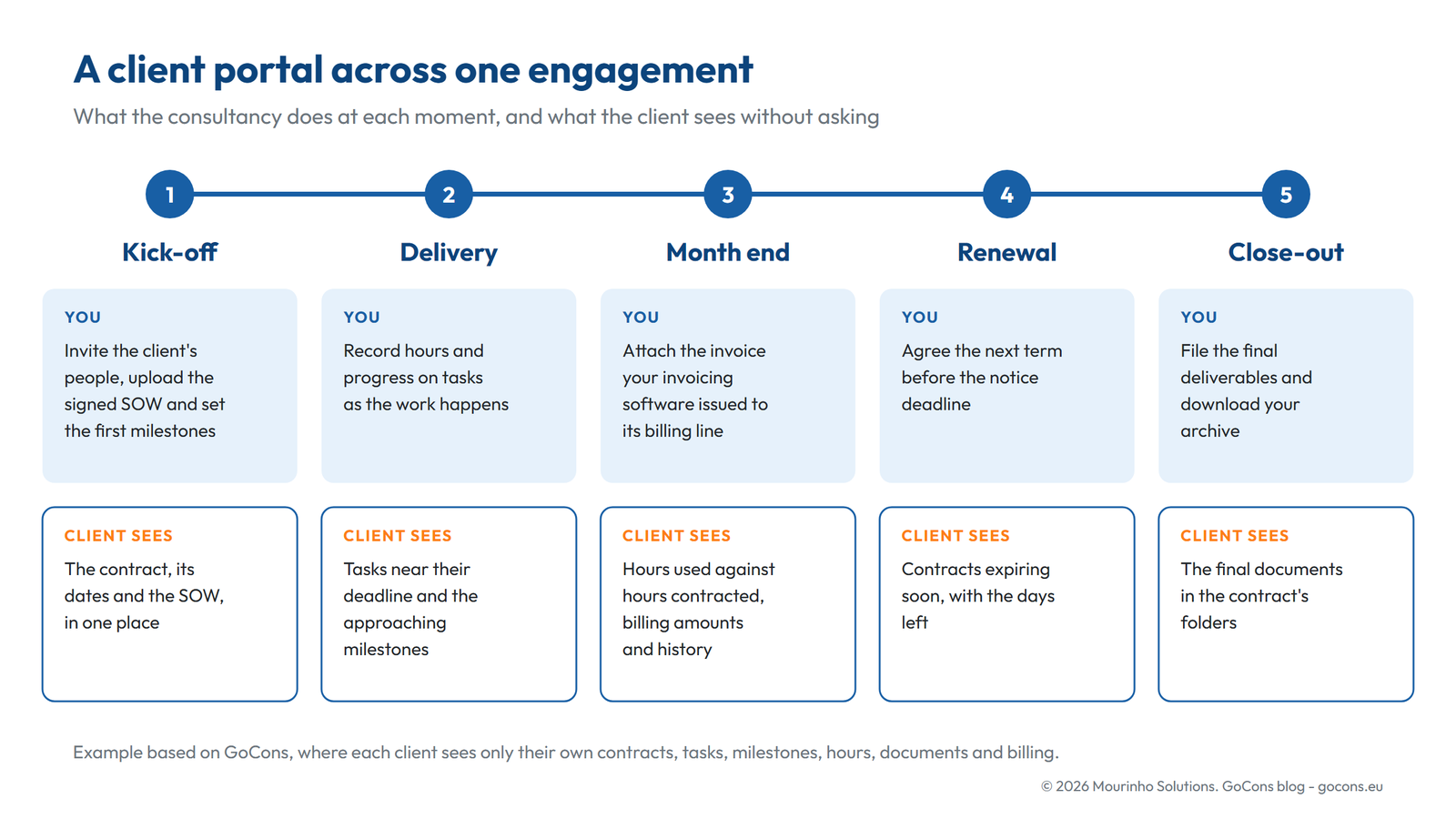
We built GoCons for our own consulting work at Mourinho Solutions before opening it to other firms, and the pattern that emerged follows the engagement, not the software. Each moment of a contract has one job for the consultancy and one thing the client should be able to see without asking.
Kick-off: one place from day one
Invite the client's people, upload the signed scope document and set the first milestones before the kick-off meeting, not after it. The first "can you send us the SOW again?" then has an answer that does not involve you.
Delivery: a status that is always current
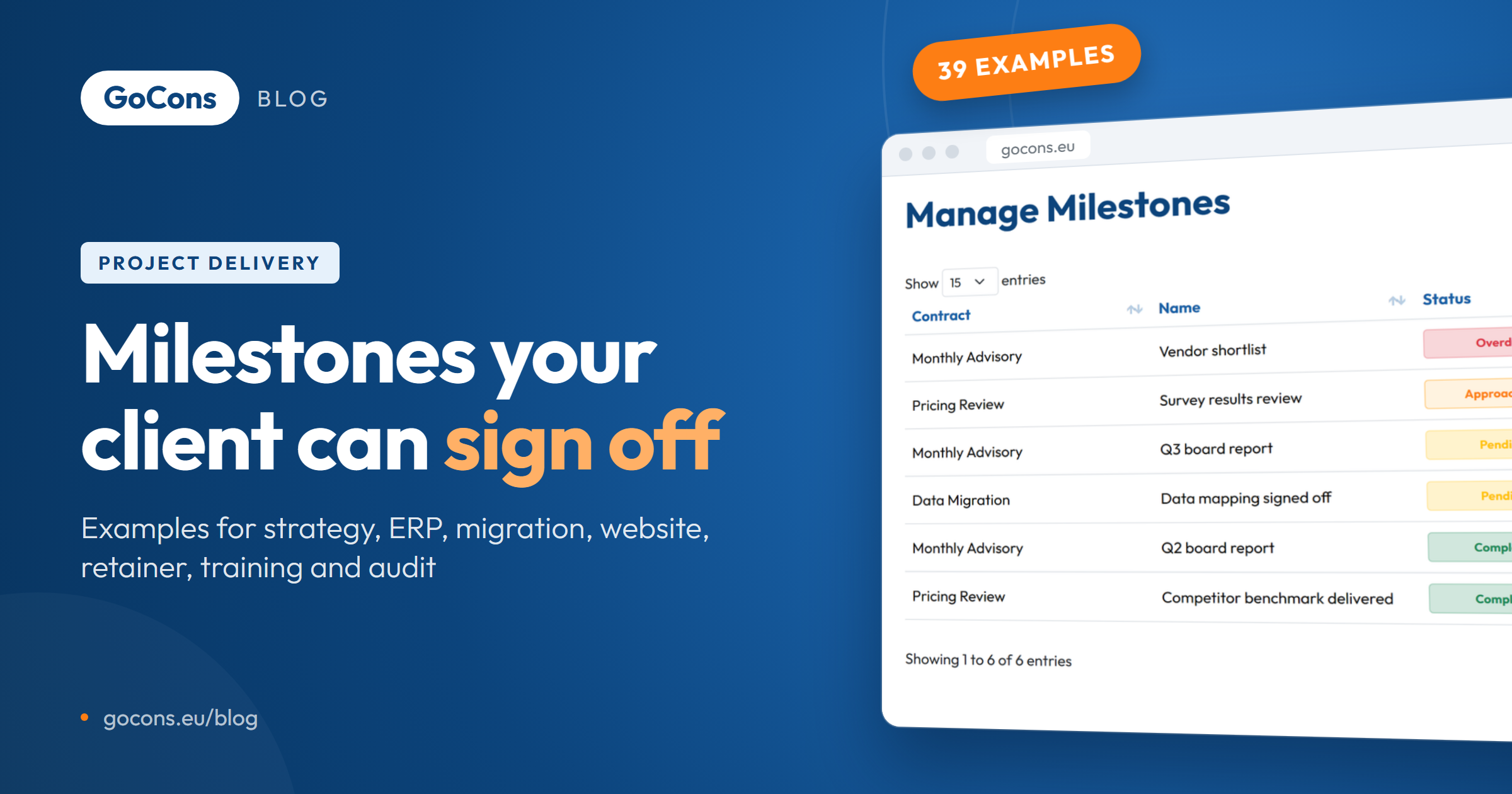
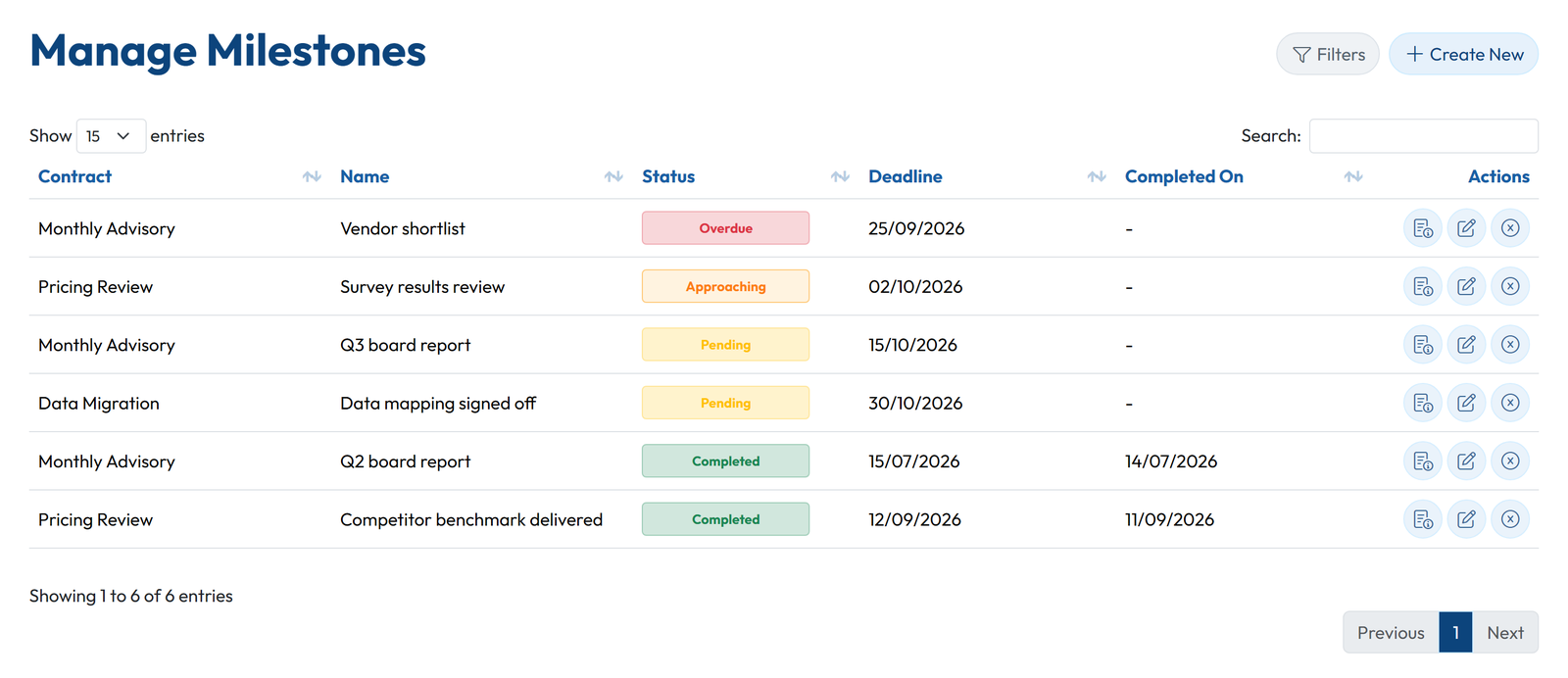
The team records hours and progress on its tasks as it works. In GoCons each task carries a schedule indicator (On Time, At Risk or Overdue), and milestones move from Pending to Approaching, Overdue or Completed, so a slipping deadline is visible while there is still time to act on it. For milestones a client understands at a glance, see these project milestone examples.
Month end: hours and money without a spreadsheet
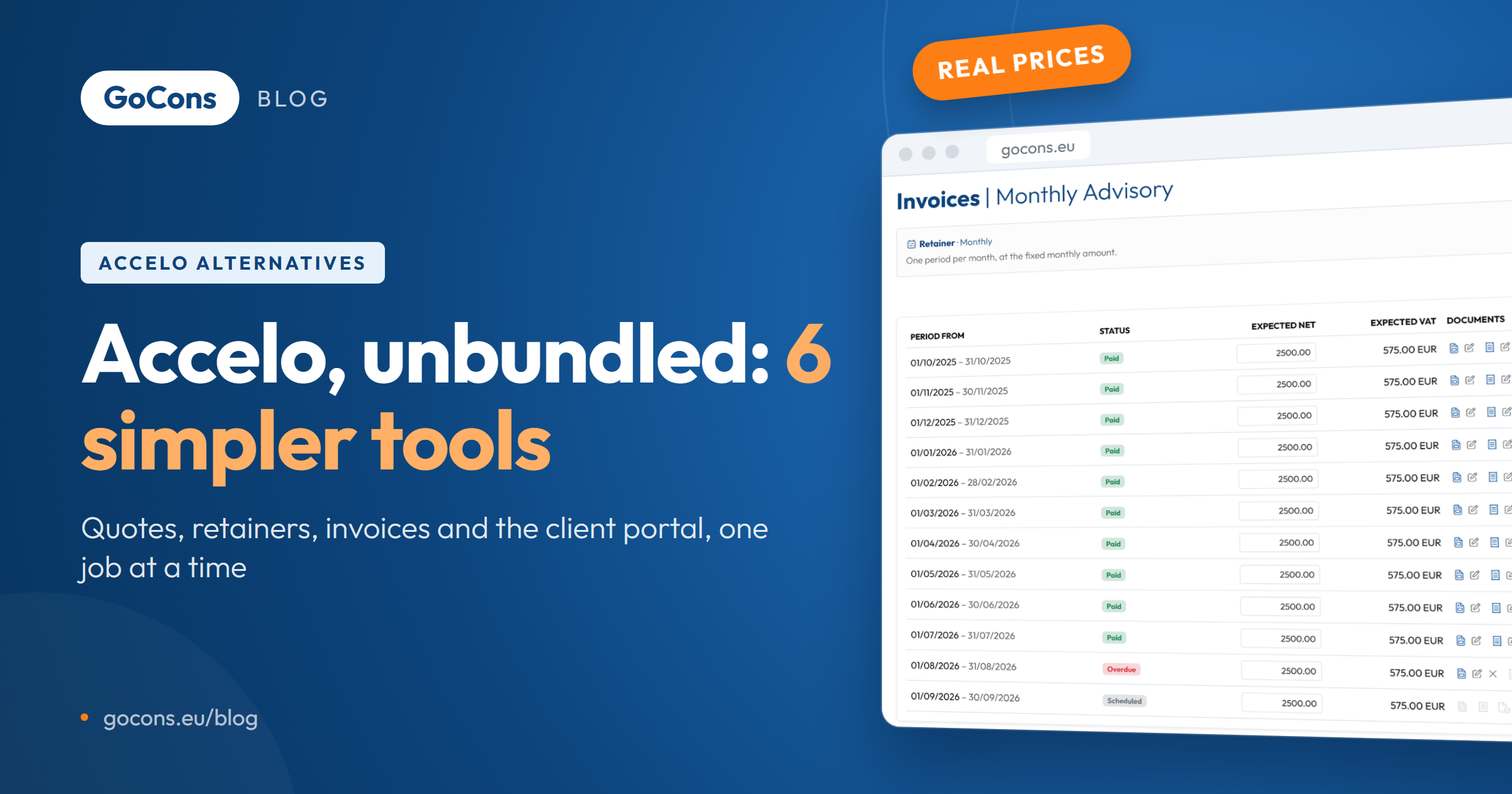
On a retainer, the client sees the month's hours used against the hours included before the month closes, while a conversation about extra work is still easy. Each contract has a billing schedule with one line per billing period or milestone; you attach the invoice issued by your own invoicing software, and the client is notified. GoCons does not issue invoices or collect payments: it records and tracks the ones you issue.
Renewal and close-out
Contracts nearing their end appear on the client's dashboard as expiring soon, which opens the renewal conversation in time. At the end of the engagement the final deliverables stay in the contract's folders, and your Admin can download all your data, with every document in its folders, for your own archive.
What to keep out of a client portal
- Internal notes, margins, cost rates and subcontractor prices.
- Drafts nobody has reviewed. Upload a deliverable when you would also have emailed it.
- Anything about another client, including in file names.
- Personal data the project does not need. The GDPR asks for personal data that is adequate, relevant and limited to what the purpose requires [1].
Then protect the way in. Every client user needs their own account, never a shared one, and two-step verification or single sign-on should be on wherever the tool offers it: the UK's National Cyber Security Centre recommends two-step verification because it keeps criminals out of accounts even when they know the password [2]. In GoCons, a client organization can connect its own Microsoft directory for single sign-on, so its people sign in with the work accounts they already use. When someone leaves the client's team, remove their access the same week.
How to roll out a client portal without annoying your clients
- Start with one client who asks often. The benefit is most visible where the email traffic is heaviest.
- Load the truth before the invitation. Contract, next milestones, open tasks and current documents. An empty portal teaches clients not to come back.
- Invite with two lines. For example: "From today, the status of the Pricing Review, the hours used and all our documents are in one place: [link]. You will still hear from us by email when something needs you."
- Answer status questions with the portal. Reply in one line and add the link. Keep email for conversations and decisions.
- Ask after a month. What did they use, what did they miss, and who else on their side should have access?
The usual objections have short answers. Your client pays nothing and installs nothing: GoCons client logins are free and unlimited, in the browser. There is no implementation project: create the account, add a contract and invite the client, the four steps shown on our site. Pricing is per consultancy, not per user, and client users never count toward a plan. And if you leave, the Admin downloads everything as Excel files plus the documents, on any plan, Free included.
FAQ
How do I log in to a client portal?
Use the link in the invitation the firm sent you: each portal belongs to the firm that runs it. In GoCons, clients are invited by email and sign in from a web browser. If you cannot find the invitation, ask your contact at the firm.
Is a client portal secure?
It is as secure as its access model. Look for named logins, each client limited to their own records, single sign-on or two-step verification, and a quick way to remove access.
What is the difference between a client portal and project management software?
Project management software is built for the team doing the work; a client portal is built for the people paying for it. Some tools do both, with a different view for each side.
How much does a client portal cost?
From nothing to enterprise contracts. At the time of writing (October 2026), GoCons has a Free plan with unlimited client users, and its Silver plan costs EUR 29 a month for the whole consultancy.
Give one client a portal this month
Choose the client who writes to you most often, put their contract, milestones and documents in one place, and invite them. It is free for you and for them: create your free GoCons account.
References
- European Union, "Regulation (EU) 2016/679 (General Data Protection Regulation), Article 5", https://eur-lex.europa.eu/eli/reg/2016/679/oj (accessed October 2026).
- National Cyber Security Centre, "Turn on 2-step verification (2SV)", https://www.ncsc.gov.uk/collection/top-tips-for-staying-secure-online/activate-2-step-verification-on-your-email (accessed October 2026).
© 2026 Mourinho Solutions. All rights reserved.